

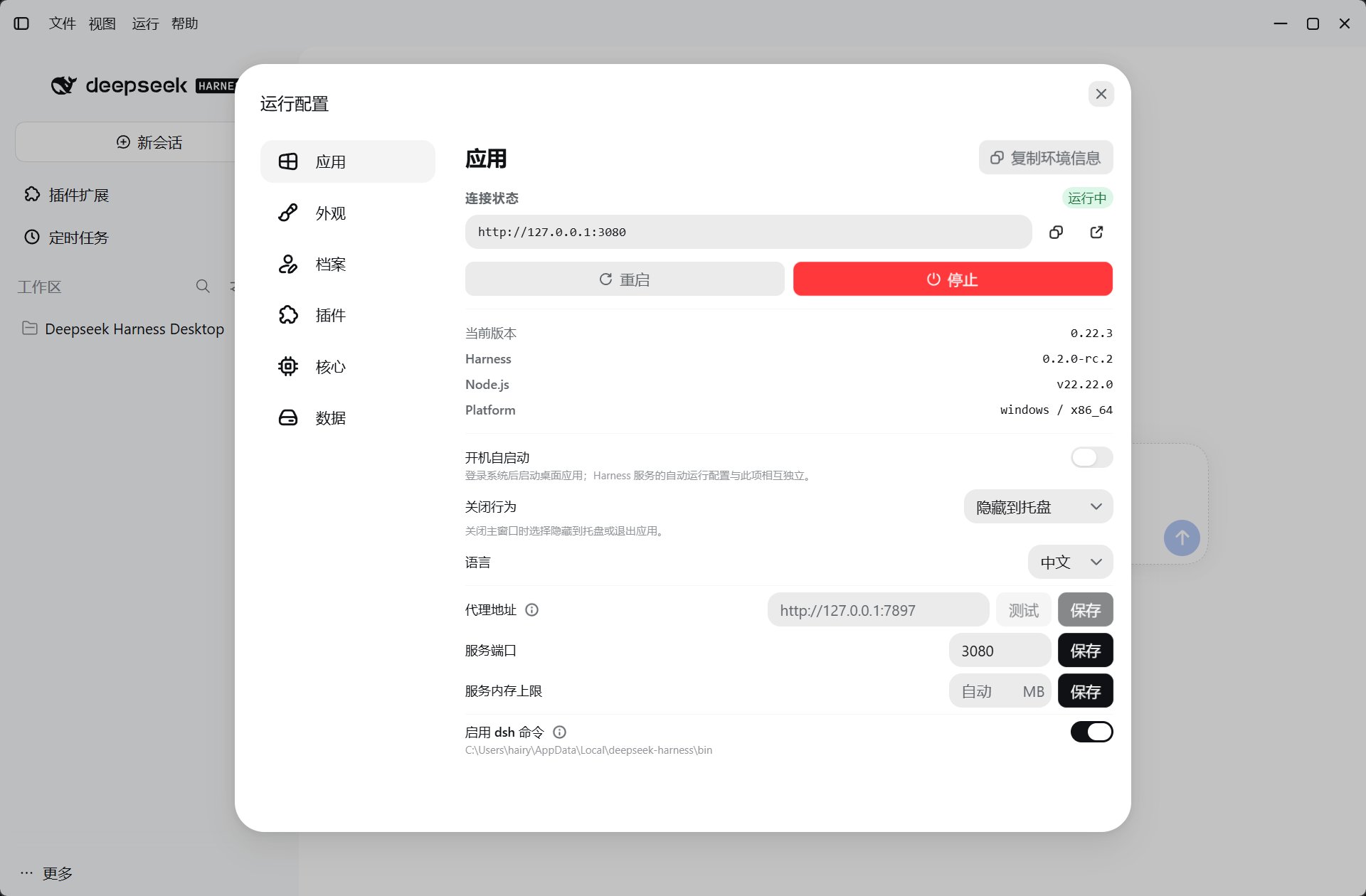
Application
Share at the top provides LAN and public-tunnel sharing; advanced settings are in Harness Settings → Remote access. See Mobile remote access for steps and authorization boundaries, or CLI integration for PATH and shell configuration changes.
Profiles
First installation uses thetauri profile; web is the built-in fallback profile. Profiles manage configuration, plugins, and patches, not operating system isolation.
- Create or clone a profile in Profiles, using a short ASCII name.
- Select it, confirm the switch, and restart the service when prompted.
- Back up before modifying or deleting it; prefer Restore as New to test recovery.
Data directory
Use Data Directory for disk usage, preflight checks, migration, and rollback; see Data management for steps. See Profiles and cores for profile configuration and migration.Plugins and core engine
Do not delete a profile or core as the first troubleshooting step. Copy logs first and determine whether the issue concerns dependencies, a plugin, the service, or a model.
See Profiles and cores for version and profile details or Data, privacy, and security for storage locations.