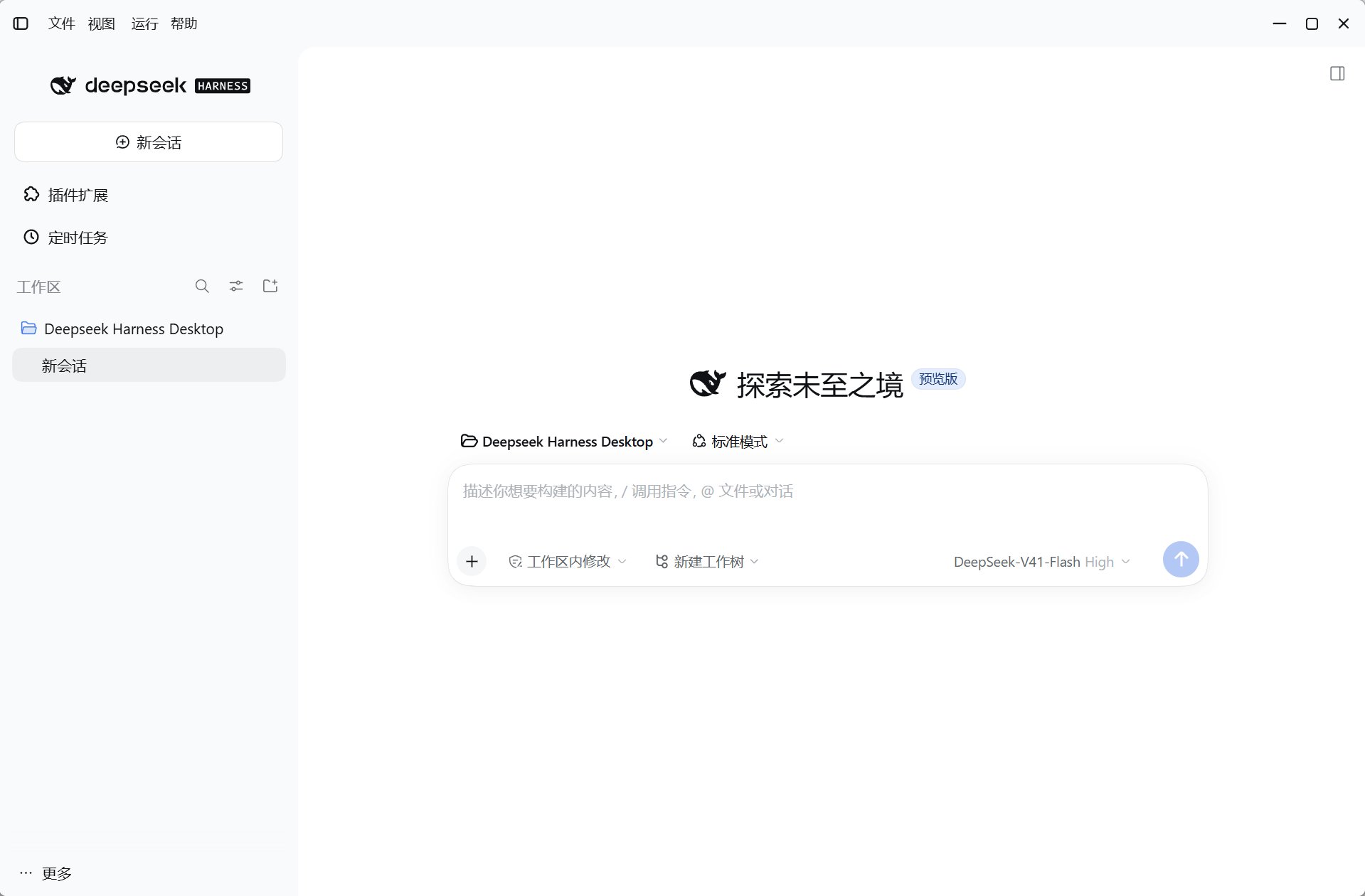
DeepSeek Harness Desktop combines two interfaces: the Harness workspace inside the window and a thin desktop shell around it. Knowing the boundary makes settings and troubleshooting easier to find.
Desktop shell and embedded Harness workspace

Harness workspace

The embedded Harness interface owns your everyday agent workflow:
  • the sidebar and session history;
  • workspace selection;
  • model selection and Settings → Models;
  • the prompt composer, attachments, approvals, tool activity, and results;
  • Harness plugins that contribute panels or actions.
Start here when your task involves a repository, model, conversation, or agent behavior.

Desktop shell

The native top bar surrounds Harness and provides: On macOS, related actions are available from the native application menu and the system traffic-light controls. Hiding or closing the visible window can leave the local service running in the tray.

Configuration panels

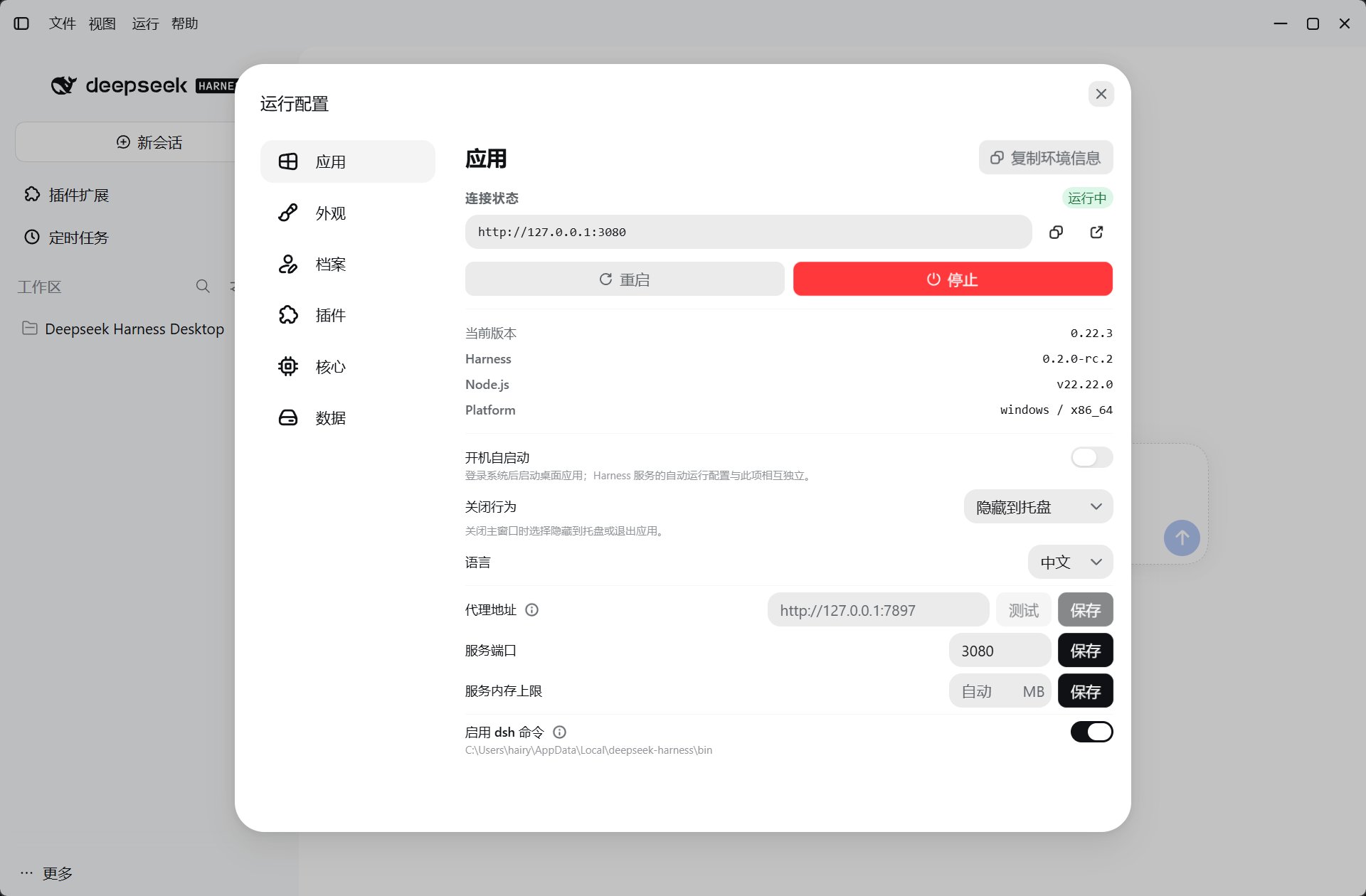
Desktop Configuration dialog with Debug, Profiles, Plugins, and Core panels
View the service URL, connection state, port, zoom, CLI integration, versions, data directory, and service logs. Port changes take effect after a service restart.
Create, activate, or delete isolated Harness profiles. Switching changes the profile’s plugins and settings and requires a restart.
Review installed plugins, inspect abnormal status, and upgrade or uninstall a plugin when troubleshooting. It is primarily a health and recovery panel.
Download, switch, update, open, or remove local and app-managed Harness core versions.
Use Harness Settings for models and agent behavior. Use desktop Configuration for the local service, profiles, plugin health, and core versions.
Continue with Workspaces and sessions.