Your phone accesses Harness on the computer; it does not run the core or tools locally. Keep the computer awake, the Harness service running, and any required tunnel online.
Connect to your computer
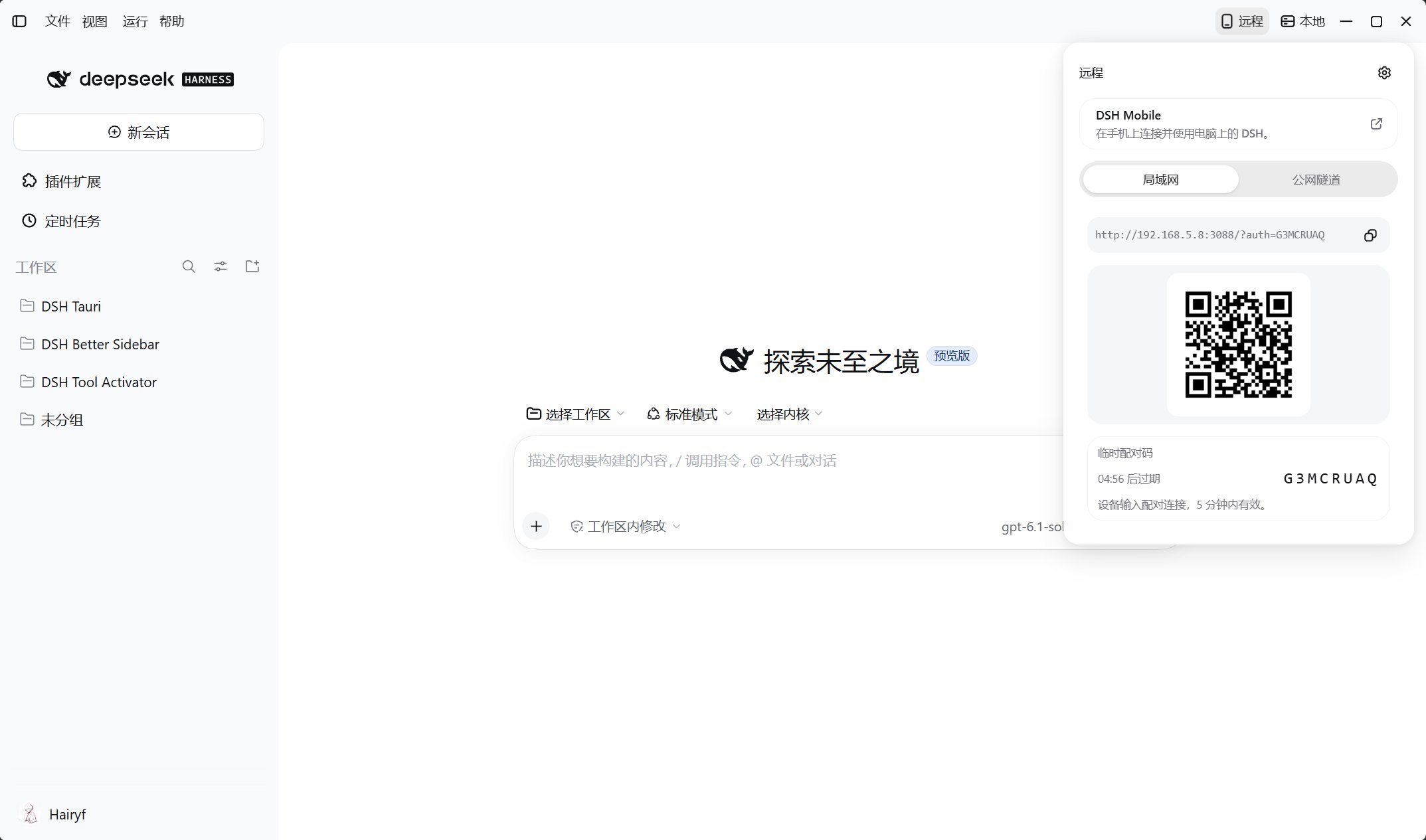
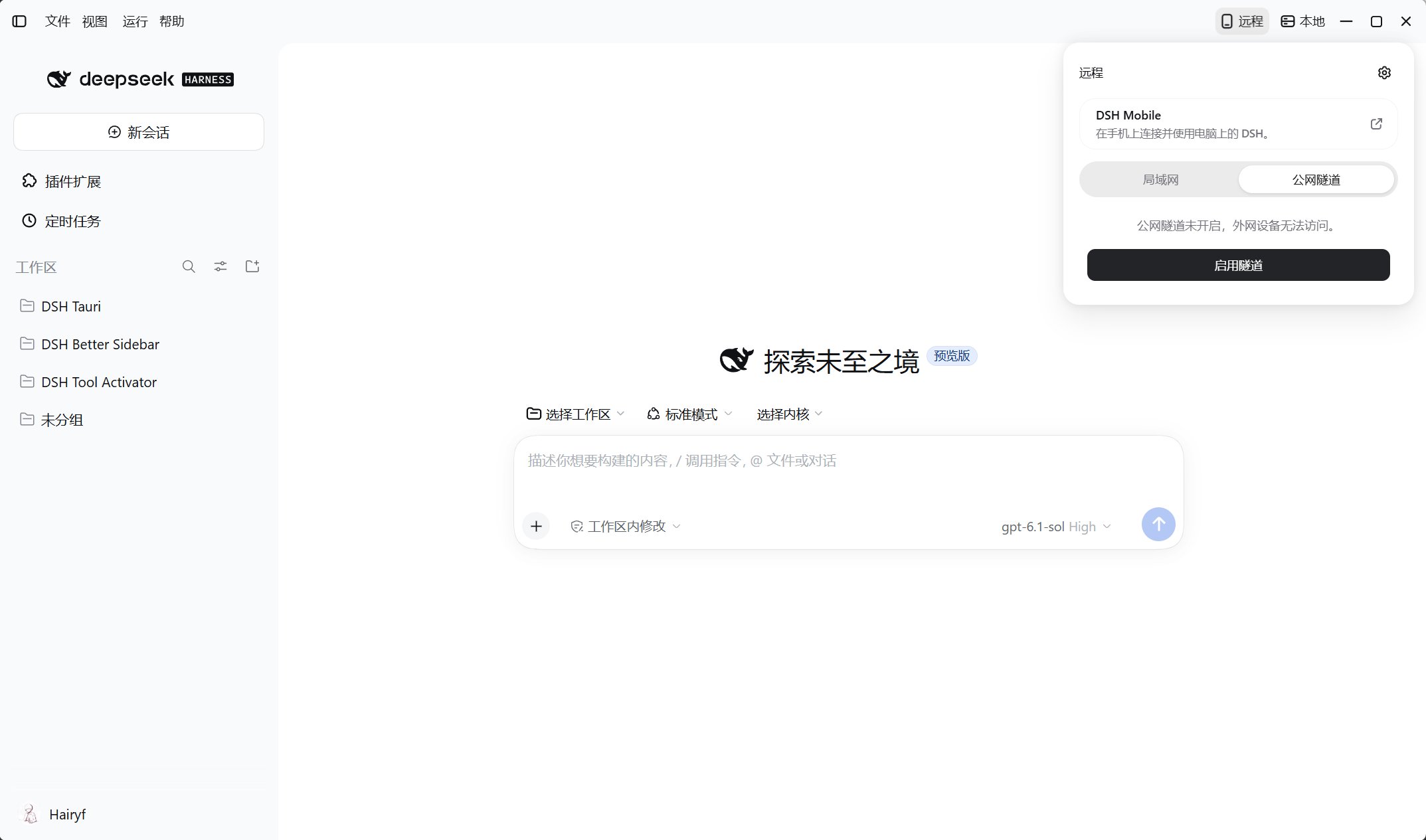
Open Share at the top of the desktop and choose a connection method:
Connect the phone and computer to the same trusted network, select Enable LAN sharing, then scan the QR code or open the link on your phone. Select Enable tunnel, wait for it to become ready, then scan the QR code or open the link. The devices do not need to share a network. 127.0.0.1 or localhost.
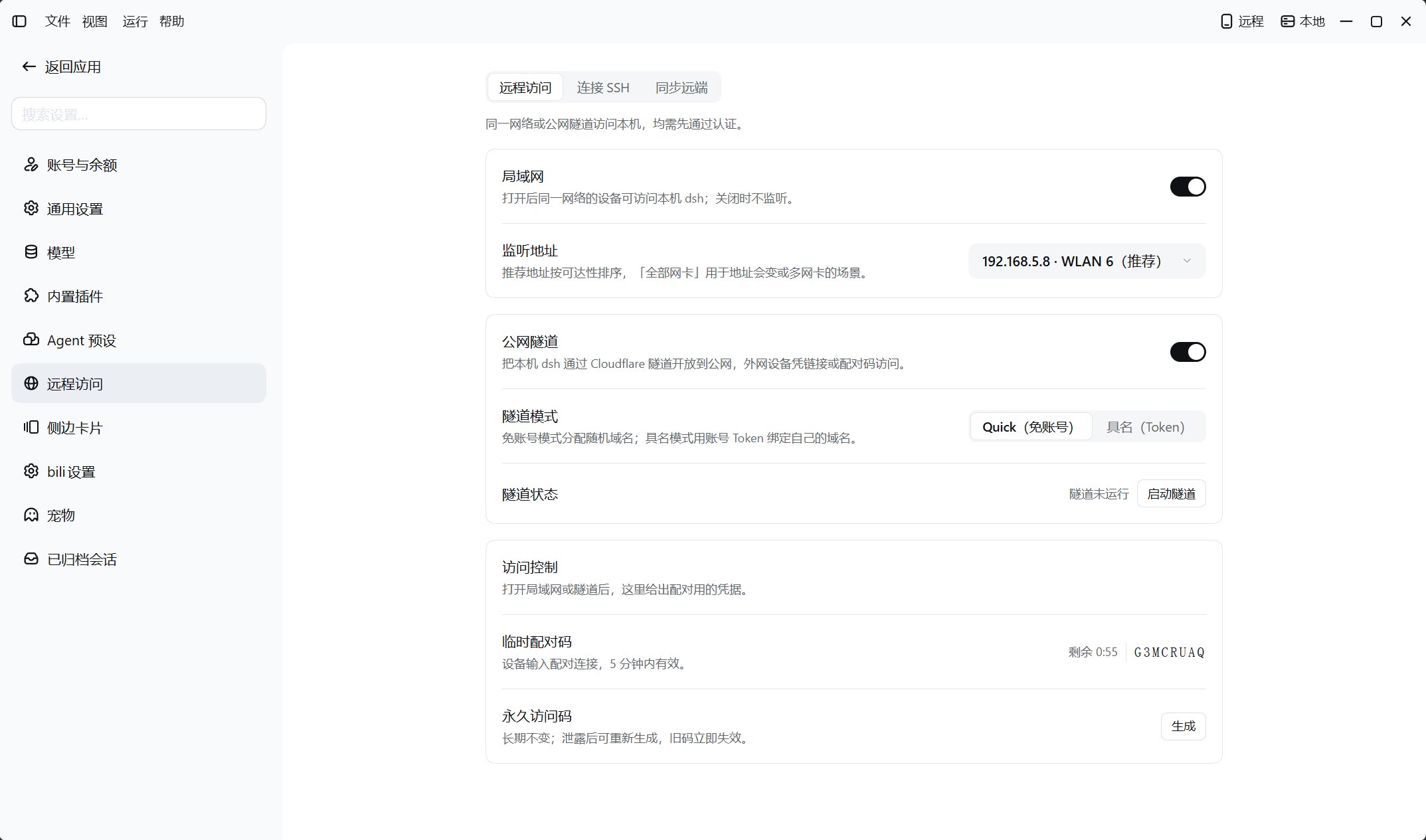
Remote-access settings
Select the gear in the top-right corner of the Share panel, or open Harness Settings → Remote access → Remote access tab.
Temporary pairing codes last 5 minutes and rotate after use; paired devices remember authorization long-term. Disabling sharing, stopping a tunnel, or rotating the permanent access code does not revoke issued sessions. Use Revoke paired access to clear all device grants, sessions, and access codes.
Enabling sharing through the interface enables authentication. Remote access is not read-only: it provides the computer’s sessions, tools, and granted permissions. Authorize only trusted devices, protect links, QR codes, access codes, and Tunnel Tokens, and never expose an unauthenticated service.
Use DSH Mobile
Get the Android APK or join iOS TestFlight from Installation and downloads; unsigned IPAs require your own signing. The app supports Scan LAN automatically, Scan QR code, and recent connections. Scanning requires camera permission; use a tunnel QR code outside the LAN.
Once connected, swipe left to view connection details. Long-press a recent connection to rename or delete it; deleting the record does not revoke authorization on the computer.
SSH connections to remote machines · Troubleshooting