> ## Documentation Index
> Fetch the complete documentation index at: https://dshtauri.mintlify.site/llms.txt
> Use this file to discover all available pages before exploring further.
# 数据管理
> 查看数据目录与占用空间,迁移到新位置或回滚。
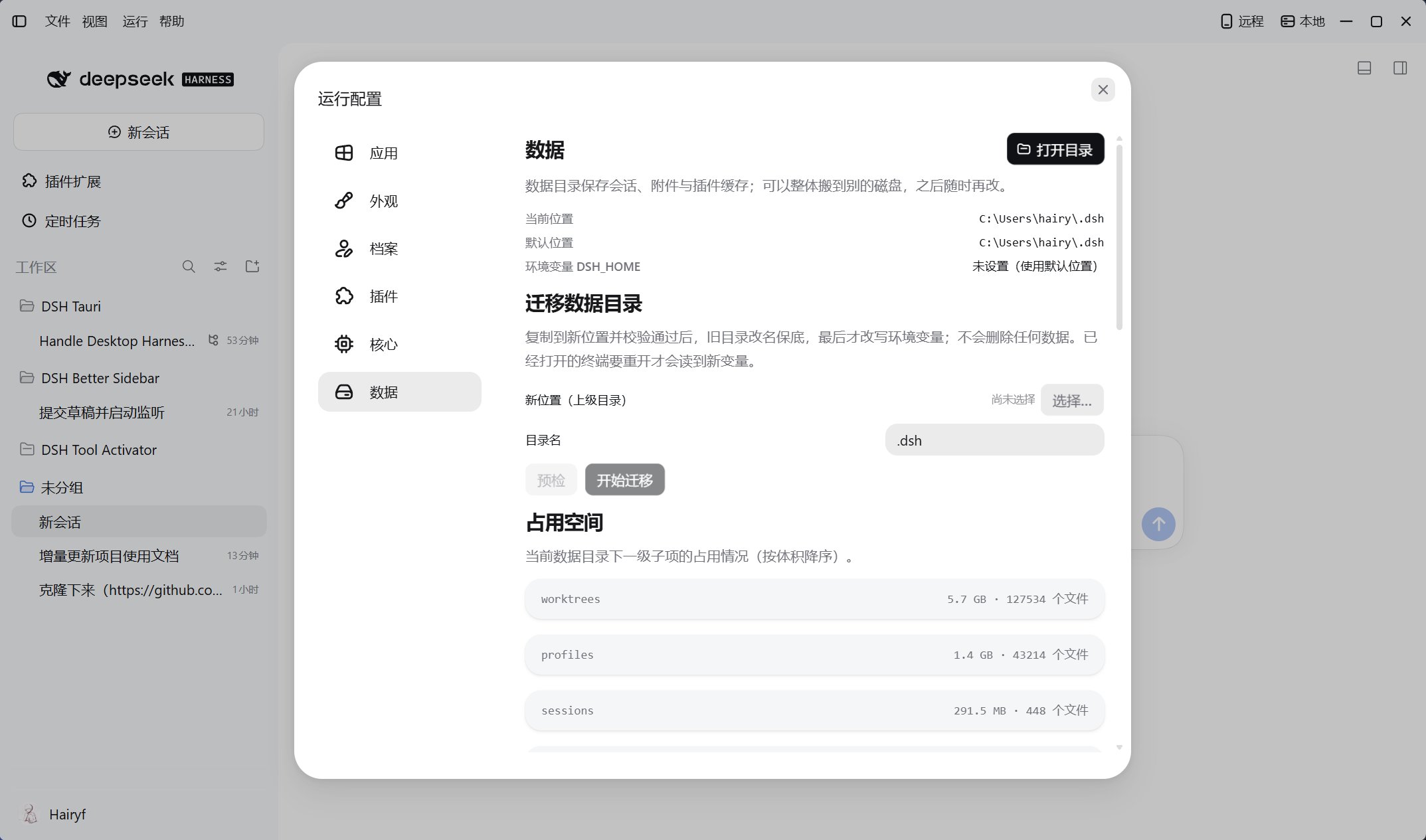
从桌面标题栏打开**运行配置 → 数据**,查看当前位置和占用空间。档案配置与迁移见 [Profile 与内核](./profiles-and-cores);默认数据路径见[数据、隐私与安全](../help/data-and-privacy)。
 ## 迁移数据目录
Windows、macOS 和 Linux 正式版支持迁移;Debug 固定使用 `~/.dsh.dev`,不支持此操作。
1. 保存工作,关闭其他使用该目录的桌面端、CLI 和网页客户端。
2. 选择新位置的上级目录,填写目录名或留空沿用,点击**预检**,核对来源、目标与可用空间。
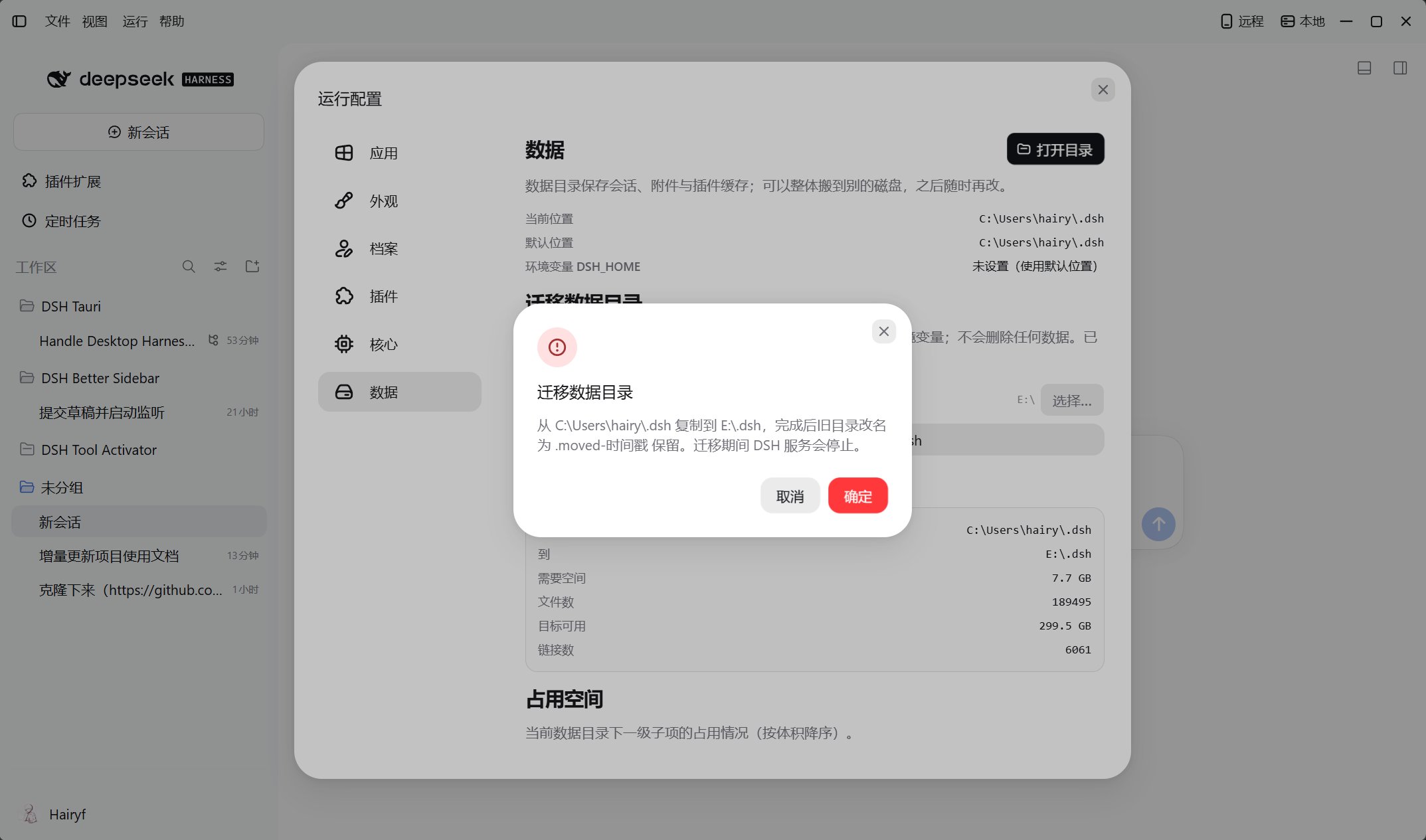
3. 点击**开始迁移**并确认。程序停止本机服务,复制并校验数据,将旧目录改名保留,再更新用户级 `DSH_HOME`。
4. 等待完成,确认会话、档案和插件正常;重开已打开的终端以读取新变量。
## 迁移数据目录
Windows、macOS 和 Linux 正式版支持迁移;Debug 固定使用 `~/.dsh.dev`,不支持此操作。
1. 保存工作,关闭其他使用该目录的桌面端、CLI 和网页客户端。
2. 选择新位置的上级目录,填写目录名或留空沿用,点击**预检**,核对来源、目标与可用空间。
3. 点击**开始迁移**并确认。程序停止本机服务,复制并校验数据,将旧目录改名保留,再更新用户级 `DSH_HOME`。
4. 等待完成,确认会话、档案和插件正常;重开已打开的终端以读取新变量。
 ## 回滚到旧位置
在同页**回滚到旧位置**选择旧目录并确认。当前数据不会删除;旧位置若已有非空目录,会先改名保留。回滚不会合并两边的数据。
验证前不要删除保留目录。迁移失败时先记录错误,核对来源与目标,见[故障排除](../help/troubleshooting)。
This documentation is built and hosted on [Mintlify](https://mintlify.com), a developer documentation platform.
## 回滚到旧位置
在同页**回滚到旧位置**选择旧目录并确认。当前数据不会删除;旧位置若已有非空目录,会先改名保留。回滚不会合并两边的数据。
验证前不要删除保留目录。迁移失败时先记录错误,核对来源与目标,见[故障排除](../help/troubleshooting)。
This documentation is built and hosted on [Mintlify](https://mintlify.com), a developer documentation platform.