> ## Documentation Index
> Fetch the complete documentation index at: https://dshtauri.mintlify.site/llms.txt
> Use this file to discover all available pages before exploring further.
# CLI 集成
> 使用 DeepSeek Harness Desktop 安装的 dsh 命令。
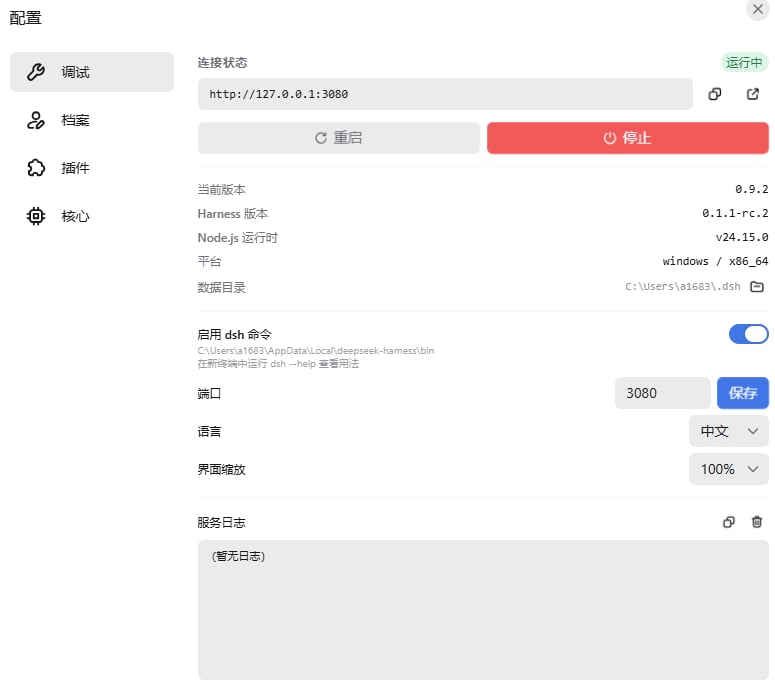
正式版可在 `PATH` 中注册轻量 `dsh` shim。它使用兼容的本地 Node.js 或托管运行时启动 CLI,
不会覆盖你的 shell 配置。
## 验证命令
关闭安装期间已打开的终端,在新终端运行:
```bash theme={null}
dsh --help
```
查看 shell 实际解析的命令:
```powershell theme={null}
Get-Command dsh
```
```bash theme={null}
command -v dsh
```
## Shim 位置
| 平台 | 目录 |
| ------------- | ------------------------------------- |
| Windows | `%LOCALAPPDATA%\deepseek-harness\bin` |
| macOS 和 Linux | `~/.local/bin` |
Shim 优先受支持的系统 Node.js,随后回退到应用数据中的托管运行时。pnpm 同样优先用户命令,
否则运行托管的 `dependencies/pnpm/bin/pnpm.cjs`。
 ## 找不到命令
1. 确认桌面设置已启用 CLI 集成。
2. 修改后重启应用。
3. 打开全新终端,而非旧 shell 进程中的新标签。
4. 确认 shim 目录存在于 `PATH`。
5. 重新运行设置或查看[故障排除](../help/troubleshooting)。
Debug 构建不会注册或删除 `PATH`,也不会写入正式版 shim,以免开发运行改变生产环境。
## 找不到命令
1. 确认桌面设置已启用 CLI 集成。
2. 修改后重启应用。
3. 打开全新终端,而非旧 shell 进程中的新标签。
4. 确认 shim 目录存在于 `PATH`。
5. 重新运行设置或查看[故障排除](../help/troubleshooting)。
Debug 构建不会注册或删除 `PATH`,也不会写入正式版 shim,以免开发运行改变生产环境。