> ## Documentation Index
> Fetch the complete documentation index at: https://dshtauri.mintlify.site/llms.txt
> Use this file to discover all available pages before exploring further.
# 配置模型
> 开始第一个任务前添加 DeepSeek 或兼容的模型供应商。
Harness 至少需要一个模型供应商才能在会话中响应。最短路径是在嵌入的 Harness 设置中添加
DeepSeek API 密钥。
 ## 添加 DeepSeek
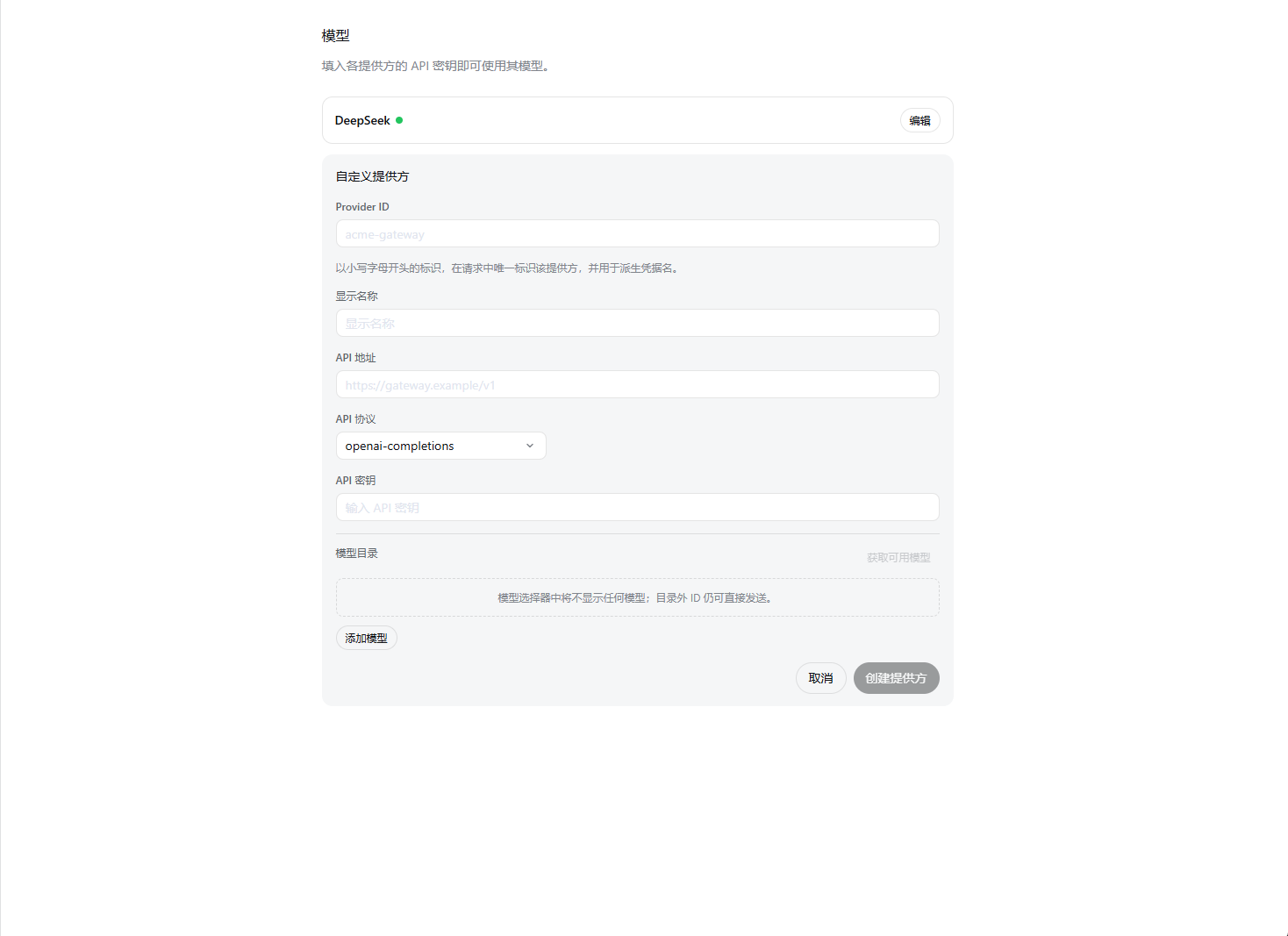
在 Harness 侧边栏打开**设置 → 模型**。这是嵌入式 Harness 界面,而不是桌面壳的**配置**对话框。
找到 DeepSeek 卡片,输入来自 [DeepSeek 开放平台](https://platform.deepseek.com/) 的密钥并保存。
返回会话输入区并选择可用模型。该选择会成为新会话的默认模型。
选择工作区,让 Harness 概括仓库。模型变化从下一次请求生效,无需重启 Harness 服务。
不要把 API 密钥粘贴到聊天消息、仓库文件、截图或 Issue 中。Harness 单独存储供应商凭据,
浏览器界面只会收到脱敏描述。
## 其他供应商
通过**添加供应商**配置 Anthropic、OpenAI 等已安装供应商;通过**添加自定义供应商**配置公司网关或
自建 OpenAI 兼容端点。自定义供应商需要稳定的小写 Provider ID、基础 URL、协议、凭据和至少一个模型。
供应商配置属于 Harness 功能,可以独立于桌面壳演进。高级路由、图片输入和兼容性选项请参阅
[上游模型配置指南](https://deepseek-harness.github.io/deepseek-harness/guide/providers)。
接下来了解[桌面端与 Harness 界面](../guides/interface)。
## 添加 DeepSeek
在 Harness 侧边栏打开**设置 → 模型**。这是嵌入式 Harness 界面,而不是桌面壳的**配置**对话框。
找到 DeepSeek 卡片,输入来自 [DeepSeek 开放平台](https://platform.deepseek.com/) 的密钥并保存。
返回会话输入区并选择可用模型。该选择会成为新会话的默认模型。
选择工作区,让 Harness 概括仓库。模型变化从下一次请求生效,无需重启 Harness 服务。
不要把 API 密钥粘贴到聊天消息、仓库文件、截图或 Issue 中。Harness 单独存储供应商凭据,
浏览器界面只会收到脱敏描述。
## 其他供应商
通过**添加供应商**配置 Anthropic、OpenAI 等已安装供应商;通过**添加自定义供应商**配置公司网关或
自建 OpenAI 兼容端点。自定义供应商需要稳定的小写 Provider ID、基础 URL、协议、凭据和至少一个模型。
供应商配置属于 Harness 功能,可以独立于桌面壳演进。高级路由、图片输入和兼容性选项请参阅
[上游模型配置指南](https://deepseek-harness.github.io/deepseek-harness/guide/providers)。
接下来了解[桌面端与 Harness 界面](../guides/interface)。