> ## Documentation Index
> Fetch the complete documentation index at: https://dshtauri.mintlify.site/llms.txt
> Use this file to discover all available pages before exploring further.
# Desktop settings
> Configure the local service, zoom, CLI integration, profiles, plugins, and core engine.
Open **Configuration** from the desktop title bar. These settings control the native
shell and local Harness service; model providers and agent behavior remain in the
embedded Harness **Settings**.
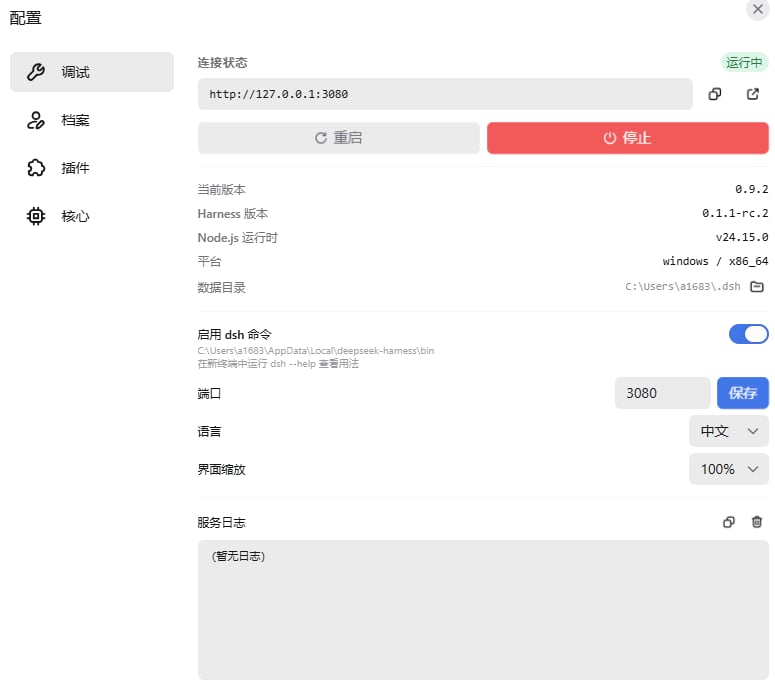 ## Debug panel
| Setting or status | What it means | Restart required |
| ----------------- | --------------------------------------------------------- | ------------------- |
| Service URL | The loopback URL currently loaded by the desktop window | No |
| Port | Preferred Harness service port; release default is `3080` | Yes |
| Interface zoom | Scale of the desktop and embedded interface | No |
| CLI integration | Add or remove the desktop `dsh` shim for new terminals | Open a new terminal |
| Connection status | Whether the desktop shell can reach Harness | No |
| Versions | Desktop, Harness core, and Node.js runtime versions | No |
| Data directory | Opens the application data directory | No |
| Service logs | Shows startup and runtime output for diagnosis | No |
When you save a changed port, the app asks whether to restart Harness immediately. If
the selected port is unavailable, startup can use another free port.
## Profiles
Profiles are isolated sets of Harness plugins, patches, and settings. The default desktop
profile is `web`.
Open **Profiles**, enter a short name, and choose **Create**.
Select the profile and confirm the switch. Restart Harness when prompted.
Deleting a profile also deletes its profile-specific plugins and settings and cannot
be undone. Workspaces and files outside the profile are not deleted.
## Plugins and core engine
The **Plugins** panel is intentionally focused on status and recovery: inspect abnormal
plugins, upgrade them, or uninstall optional ones. The **Core Engine** panel manages
local and app-prebuilt Harness versions, including download, switch, update, open folder,
and uninstall actions.
Do not delete a profile or core as the first troubleshooting step. Copy the run log,
identify whether the problem belongs to a plugin or service, and back up important
Harness data before destructive actions.
For exact storage locations, see [Data, privacy, and security](../help/data-and-privacy).
## Debug panel
| Setting or status | What it means | Restart required |
| ----------------- | --------------------------------------------------------- | ------------------- |
| Service URL | The loopback URL currently loaded by the desktop window | No |
| Port | Preferred Harness service port; release default is `3080` | Yes |
| Interface zoom | Scale of the desktop and embedded interface | No |
| CLI integration | Add or remove the desktop `dsh` shim for new terminals | Open a new terminal |
| Connection status | Whether the desktop shell can reach Harness | No |
| Versions | Desktop, Harness core, and Node.js runtime versions | No |
| Data directory | Opens the application data directory | No |
| Service logs | Shows startup and runtime output for diagnosis | No |
When you save a changed port, the app asks whether to restart Harness immediately. If
the selected port is unavailable, startup can use another free port.
## Profiles
Profiles are isolated sets of Harness plugins, patches, and settings. The default desktop
profile is `web`.
Open **Profiles**, enter a short name, and choose **Create**.
Select the profile and confirm the switch. Restart Harness when prompted.
Deleting a profile also deletes its profile-specific plugins and settings and cannot
be undone. Workspaces and files outside the profile are not deleted.
## Plugins and core engine
The **Plugins** panel is intentionally focused on status and recovery: inspect abnormal
plugins, upgrade them, or uninstall optional ones. The **Core Engine** panel manages
local and app-prebuilt Harness versions, including download, switch, update, open folder,
and uninstall actions.
Do not delete a profile or core as the first troubleshooting step. Copy the run log,
identify whether the problem belongs to a plugin or service, and back up important
Harness data before destructive actions.
For exact storage locations, see [Data, privacy, and security](../help/data-and-privacy).