> ## Documentation Index
> Fetch the complete documentation index at: https://dshtauri.mintlify.site/llms.txt
> Use this file to discover all available pages before exploring further.
# Mobile remote access
> Access Harness on your computer from a phone browser or DSH Mobile over LAN or a public tunnel.
Your phone accesses Harness on the computer; it does not run the core or tools locally. Keep the computer awake, the Harness service running, and any required tunnel online.
## Connect to your computer
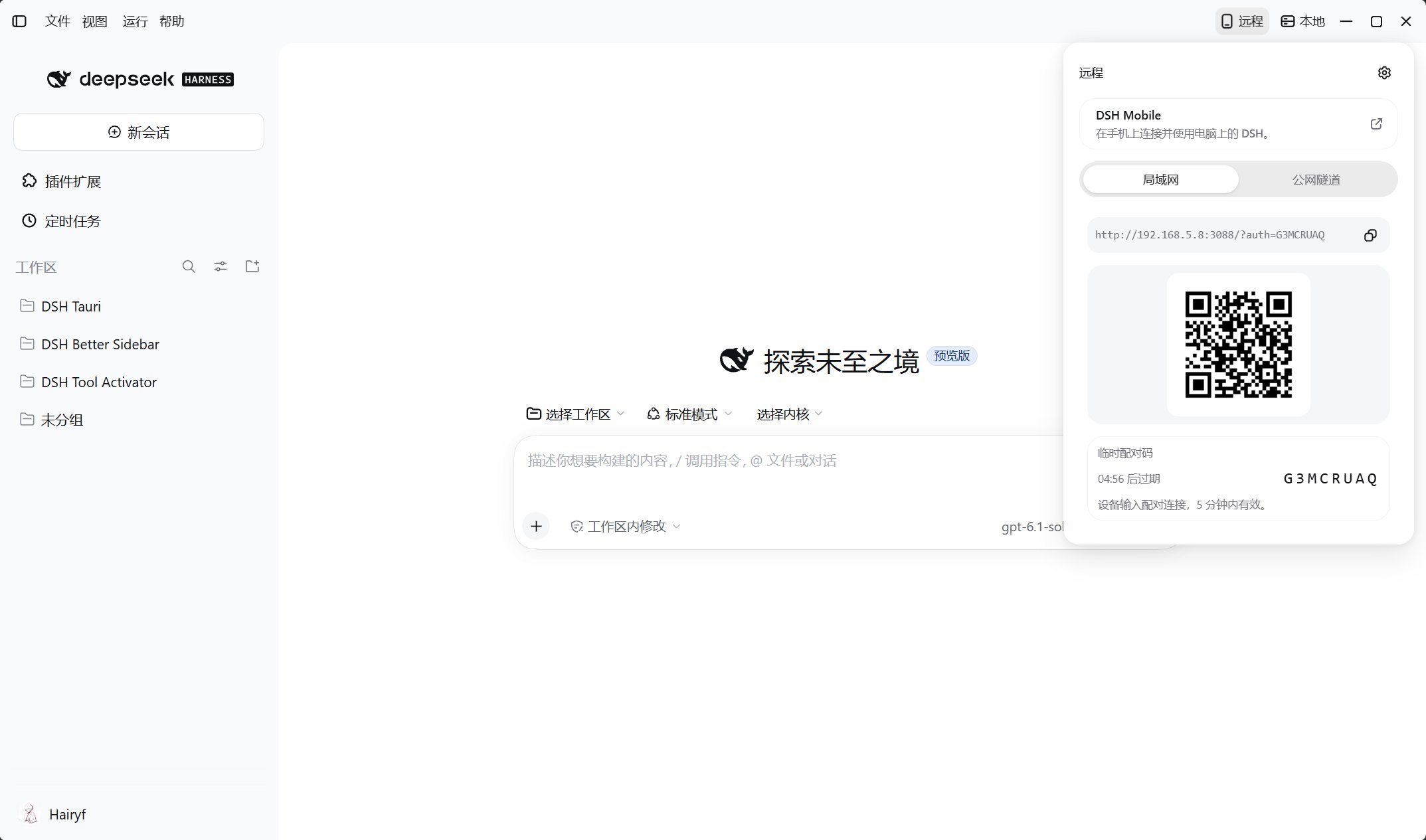
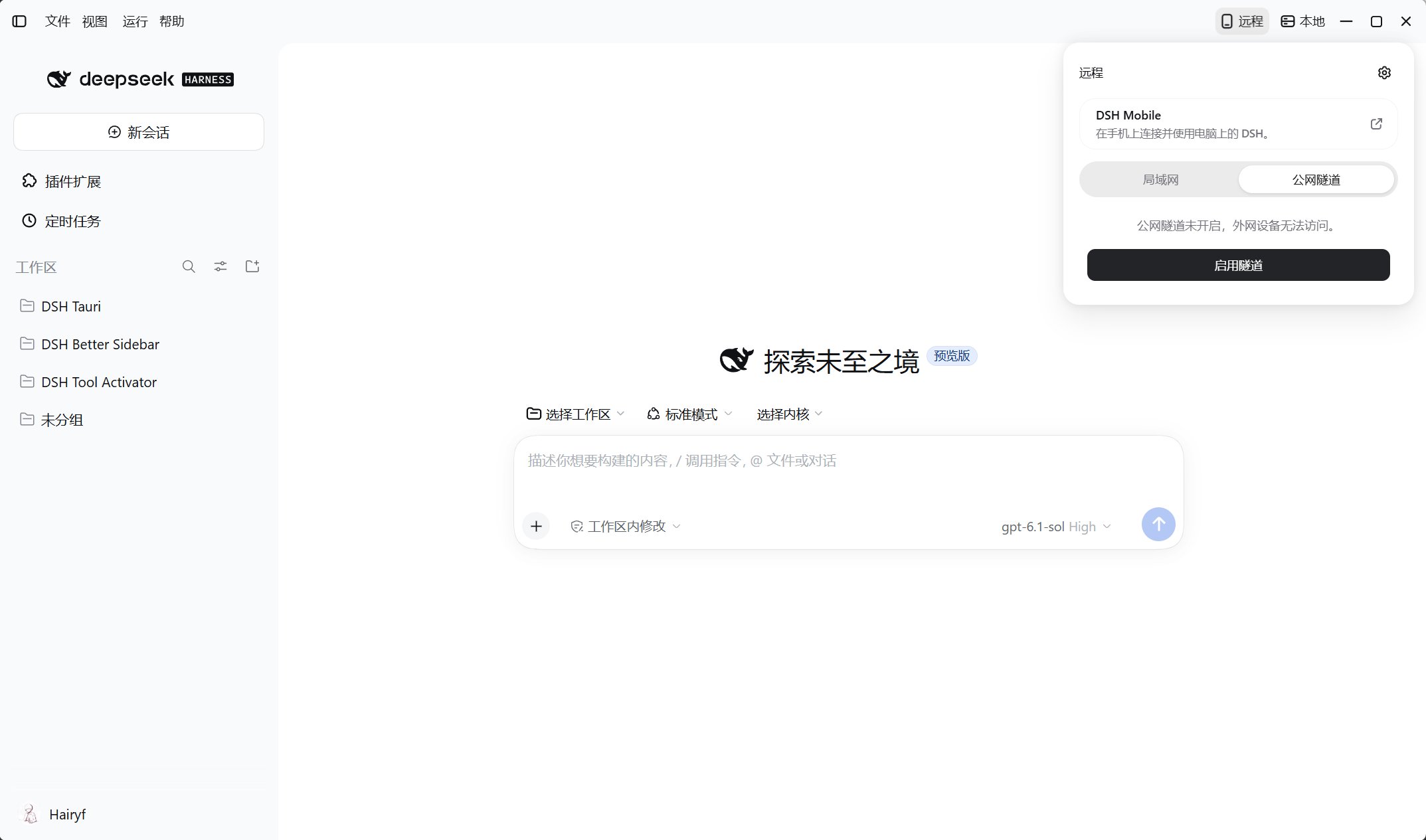
Open **Share** at the top of the desktop and choose a connection method:
Connect the phone and computer to the same trusted network, select **Enable LAN sharing**, then scan the QR code or open the link on your phone.
 Select **Enable tunnel**, wait for it to become ready, then scan the QR code or open the link. The devices do not need to share a network.
 Enter the temporary pairing code shown on the desktop if prompted, then confirm that the computer's sessions appear. For failed LAN connections, check the firewall and Wi-Fi client isolation; do not use `127.0.0.1` or `localhost`.
## Remote-access settings
Select the gear in the top-right corner of the **Share** panel, or open Harness **Settings → Remote access → Remote access** tab.
| Setting | Purpose |
| - | - |
| LAN / Listen address | Toggle LAN sharing and prefer the recommended address. Choose **all interfaces** for changing addresses or multiple adapters |
| Public tunnel | Quick assigns a random domain without an account. Named mode requires a Tunnel Token, public hostname, and route configured in Cloudflare. Check its status and start or stop it as needed |
| Access control | Get a temporary pairing code, generate a permanent access code, or revoke all paired access |
Enter the temporary pairing code shown on the desktop if prompted, then confirm that the computer's sessions appear. For failed LAN connections, check the firewall and Wi-Fi client isolation; do not use `127.0.0.1` or `localhost`.
## Remote-access settings
Select the gear in the top-right corner of the **Share** panel, or open Harness **Settings → Remote access → Remote access** tab.
| Setting | Purpose |
| - | - |
| LAN / Listen address | Toggle LAN sharing and prefer the recommended address. Choose **all interfaces** for changing addresses or multiple adapters |
| Public tunnel | Quick assigns a random domain without an account. Named mode requires a Tunnel Token, public hostname, and route configured in Cloudflare. Check its status and start or stop it as needed |
| Access control | Get a temporary pairing code, generate a permanent access code, or revoke all paired access |
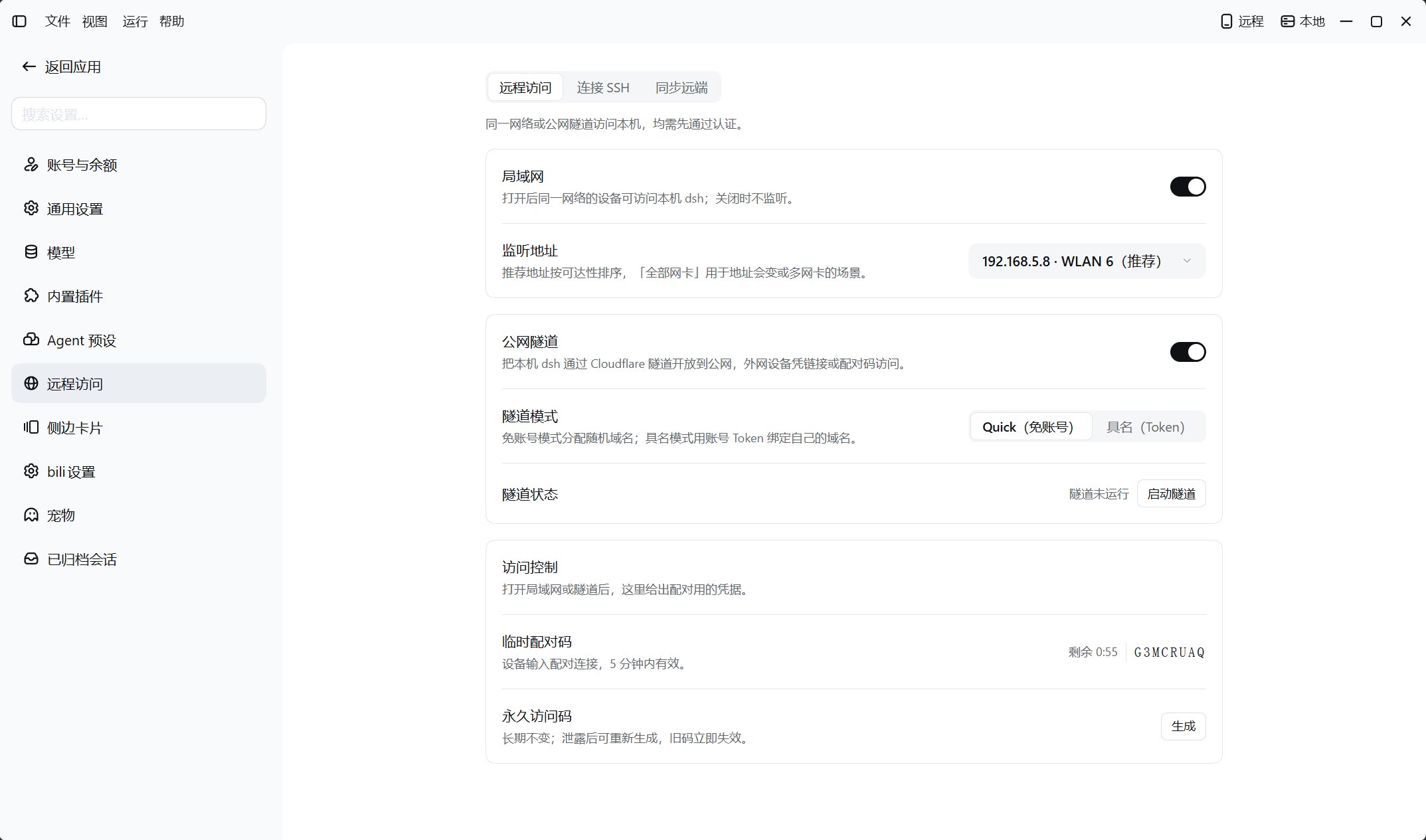 Temporary pairing codes last **5 minutes** and rotate after use; paired devices remember authorization long-term. Disabling sharing, stopping a tunnel, or rotating the permanent access code does not revoke issued sessions. Use **Revoke paired access** to clear all device grants, sessions, and access codes.
Enabling sharing through the interface enables authentication. Remote access is not read-only: it provides the computer's sessions, tools, and granted permissions. Authorize only trusted devices, protect links, QR codes, access codes, and Tunnel Tokens, and never expose an unauthenticated service.
## Use DSH Mobile
Get the Android APK or join iOS TestFlight from [Installation and downloads](../installation); unsigned IPAs require your own signing. The app supports **Scan LAN automatically**, **Scan QR code**, and recent connections. Scanning requires camera permission; use a tunnel QR code outside the LAN.
Once connected, swipe left to view connection details. Long-press a recent connection to rename or delete it; deleting the record does not revoke authorization on the computer.
[SSH connections to remote machines](../built-in-plugins/dsh-tauri-remote) · [Troubleshooting](../help/troubleshooting)
This documentation is built and hosted on [Mintlify](https://mintlify.com), a developer documentation platform.
Temporary pairing codes last **5 minutes** and rotate after use; paired devices remember authorization long-term. Disabling sharing, stopping a tunnel, or rotating the permanent access code does not revoke issued sessions. Use **Revoke paired access** to clear all device grants, sessions, and access codes.
Enabling sharing through the interface enables authentication. Remote access is not read-only: it provides the computer's sessions, tools, and granted permissions. Authorize only trusted devices, protect links, QR codes, access codes, and Tunnel Tokens, and never expose an unauthenticated service.
## Use DSH Mobile
Get the Android APK or join iOS TestFlight from [Installation and downloads](../installation); unsigned IPAs require your own signing. The app supports **Scan LAN automatically**, **Scan QR code**, and recent connections. Scanning requires camera permission; use a tunnel QR code outside the LAN.
Once connected, swipe left to view connection details. Long-press a recent connection to rename or delete it; deleting the record does not revoke authorization on the computer.
[SSH connections to remote machines](../built-in-plugins/dsh-tauri-remote) · [Troubleshooting](../help/troubleshooting)
This documentation is built and hosted on [Mintlify](https://mintlify.com), a developer documentation platform.