> ## Documentation Index
> Fetch the complete documentation index at: https://dshtauri.mintlify.site/llms.txt
> Use this file to discover all available pages before exploring further.
# Interface tour
> Find sessions, model settings, desktop configuration, logs, and window controls.
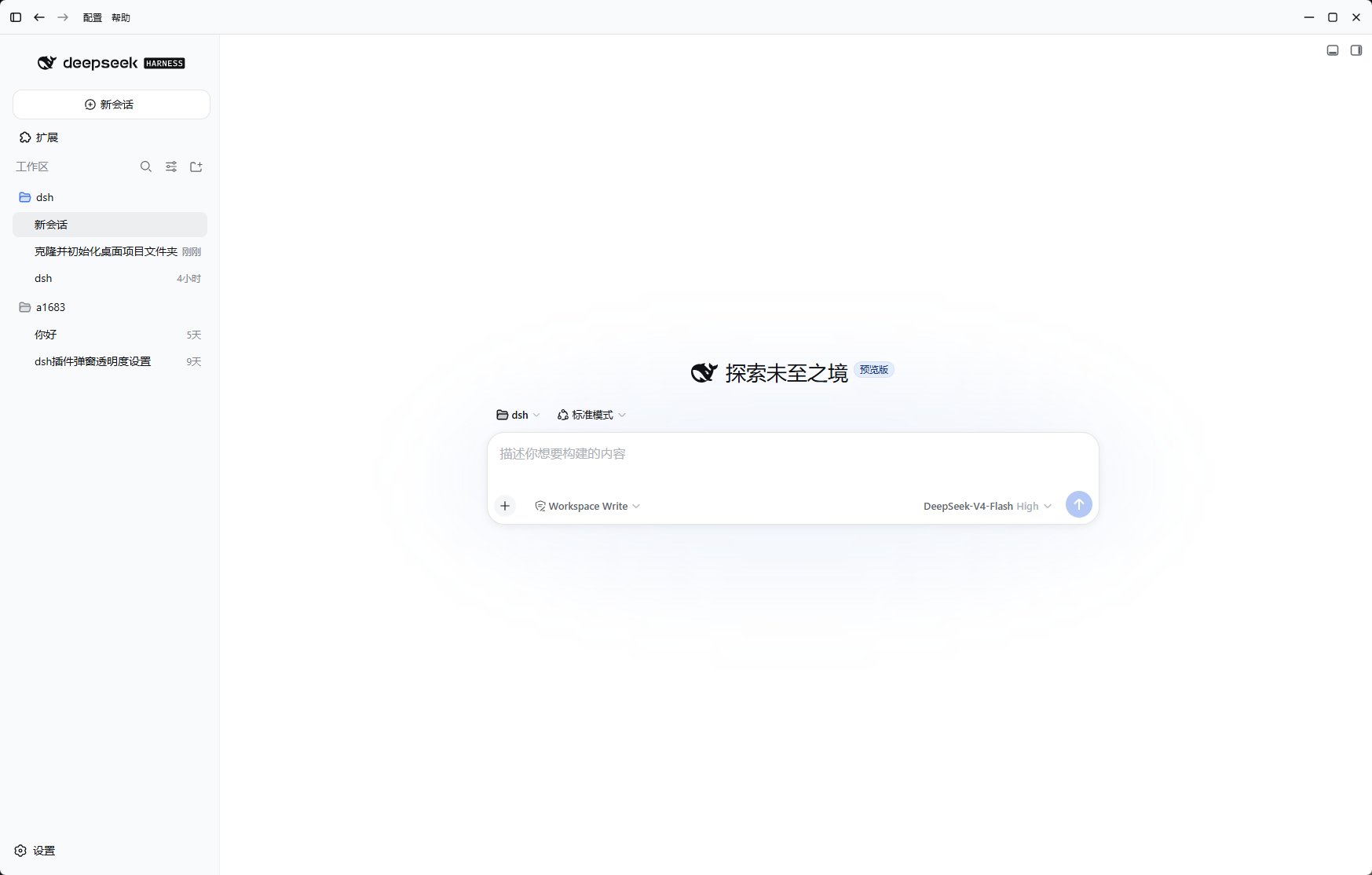
DeepSeek Harness Desktop combines two interfaces: the Harness workspace inside the
window and a thin desktop shell around it. Knowing the boundary makes settings and
troubleshooting easier to find.
 ## Harness workspace
The embedded Harness interface owns your everyday agent workflow:
* the sidebar and session history;
* workspace selection;
* model selection and **Settings → Models**;
* the prompt composer, attachments, approvals, tool activity, and results;
* Harness plugins that contribute panels or actions.
Start here when your task involves a repository, model, conversation, or agent behavior.
## Desktop shell
The native top bar surrounds Harness and provides:
| Control | What it does |
| ---------------------------- | -------------------------------------------------------------------------------- |
| Sidebar, Back, Forward | Controls the embedded Harness navigation when the Tauri integration is available |
| **Configuration** | Opens Debug, Profiles, Plugins, and Core Engine panels |
| **Help → Run logs** | Copies the desktop and service run log for troubleshooting |
| **Help → Check for updates** | Checks the native desktop application for a newer release |
| **Help → About Desktop** | Shows desktop version, release date, source, and platform details |
| Window controls | Minimizes, maximizes, or hides the app to the system tray |
On macOS, related actions are available from the native application menu and the system
traffic-light controls. Hiding or closing the visible window can leave the local service
running in the tray.
## Configuration panels
## Harness workspace
The embedded Harness interface owns your everyday agent workflow:
* the sidebar and session history;
* workspace selection;
* model selection and **Settings → Models**;
* the prompt composer, attachments, approvals, tool activity, and results;
* Harness plugins that contribute panels or actions.
Start here when your task involves a repository, model, conversation, or agent behavior.
## Desktop shell
The native top bar surrounds Harness and provides:
| Control | What it does |
| ---------------------------- | -------------------------------------------------------------------------------- |
| Sidebar, Back, Forward | Controls the embedded Harness navigation when the Tauri integration is available |
| **Configuration** | Opens Debug, Profiles, Plugins, and Core Engine panels |
| **Help → Run logs** | Copies the desktop and service run log for troubleshooting |
| **Help → Check for updates** | Checks the native desktop application for a newer release |
| **Help → About Desktop** | Shows desktop version, release date, source, and platform details |
| Window controls | Minimizes, maximizes, or hides the app to the system tray |
On macOS, related actions are available from the native application menu and the system
traffic-light controls. Hiding or closing the visible window can leave the local service
running in the tray.
## Configuration panels
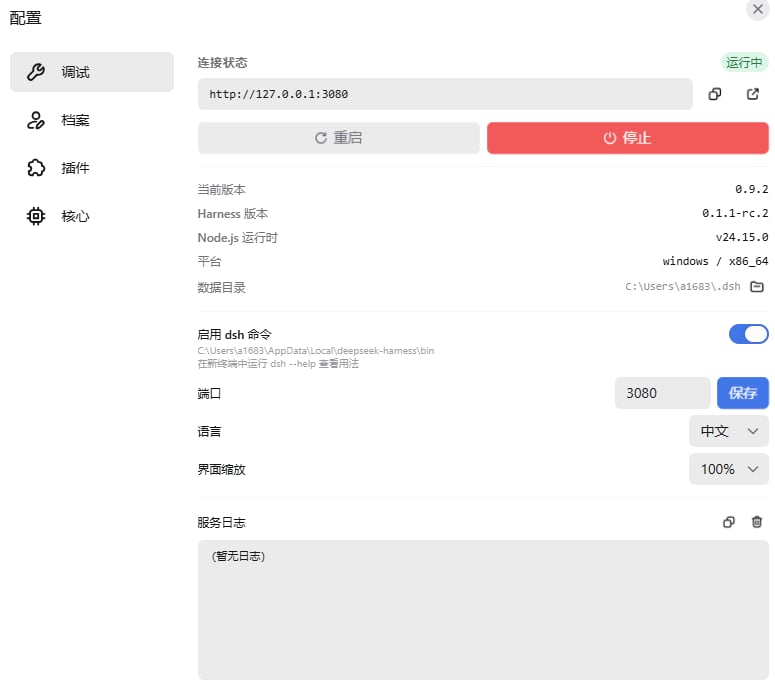 View the service URL, connection state, port, zoom, CLI integration, versions, data
directory, and service logs. Port changes take effect after a service restart.
Create, activate, or delete isolated Harness profiles. Switching changes the profile's
plugins and settings and requires a restart.
Review installed plugins, inspect abnormal status, and upgrade or uninstall a plugin
when troubleshooting. It is primarily a health and recovery panel.
Download, switch, update, open, or remove local and app-managed Harness core versions.
Use **Harness Settings** for models and agent behavior. Use desktop
**Configuration** for the local service, profiles, plugin health, and core versions.
Continue with [Workspaces and sessions](./workspaces-and-sessions).
View the service URL, connection state, port, zoom, CLI integration, versions, data
directory, and service logs. Port changes take effect after a service restart.
Create, activate, or delete isolated Harness profiles. Switching changes the profile's
plugins and settings and requires a restart.
Review installed plugins, inspect abnormal status, and upgrade or uninstall a plugin
when troubleshooting. It is primarily a health and recovery panel.
Download, switch, update, open, or remove local and app-managed Harness core versions.
Use **Harness Settings** for models and agent behavior. Use desktop
**Configuration** for the local service, profiles, plugin health, and core versions.
Continue with [Workspaces and sessions](./workspaces-and-sessions).