> ## Documentation Index
> Fetch the complete documentation index at: https://dshtauri.mintlify.site/llms.txt
> Use this file to discover all available pages before exploring further.
# Data management
> Check the data directory and disk usage, migrate to a new location, or roll back.
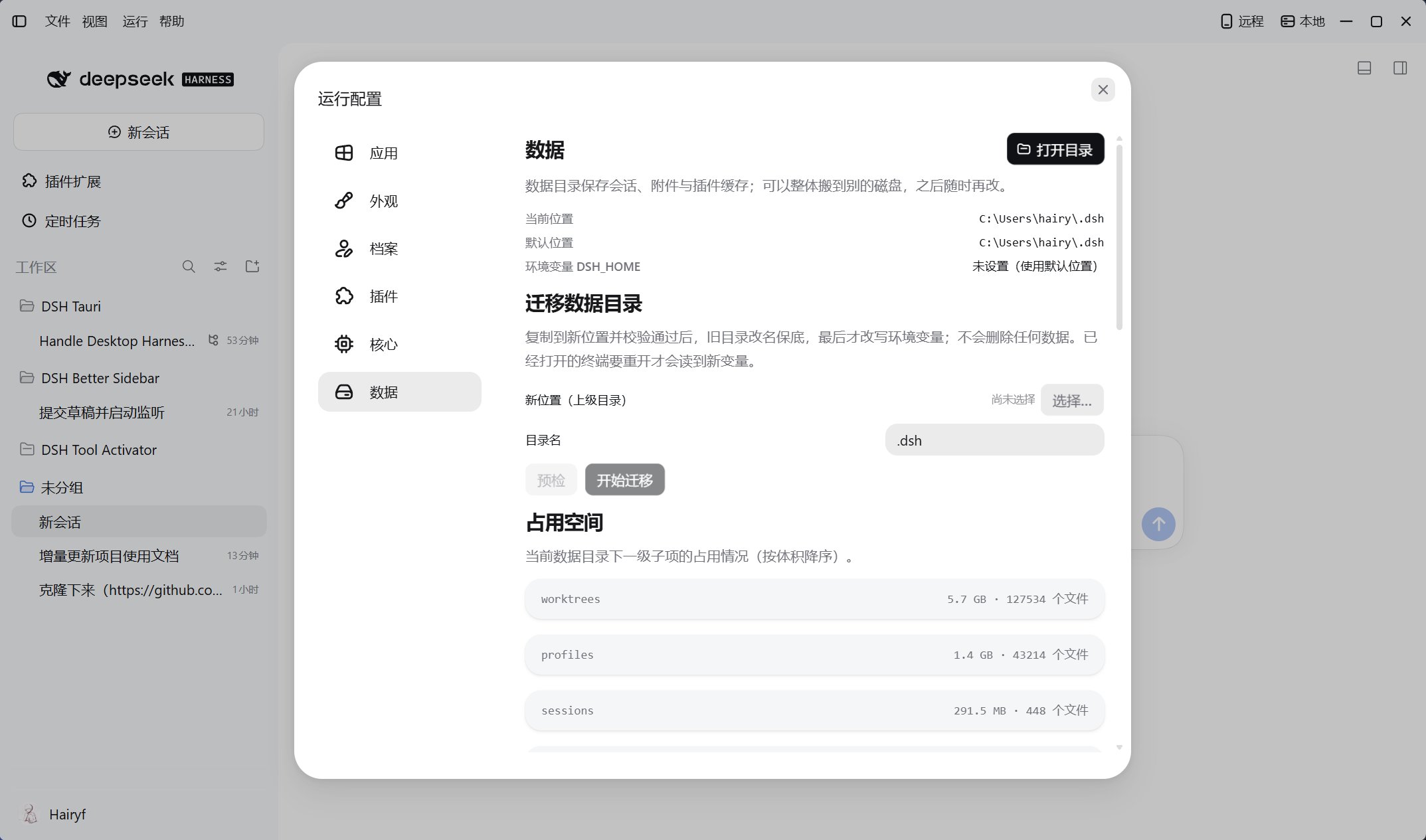
Open **Running → Data Directory** in the desktop title bar to check the current location and disk usage. See [Profiles and cores](./profiles-and-cores) for profile configuration and migration, or [Data, privacy, and security](../help/data-and-privacy) for default data paths.
 ## Migrate the data directory
Release builds on Windows, macOS, and Linux support migration. Debug always uses `~/.dsh.dev` and does not support this operation.
1. Save your work and close other desktop, CLI, and Web clients using the directory.
2. Choose the destination's parent folder. Enter a folder name or leave it blank to keep the current name. Select **Dry run** and check the source, destination, and free space.
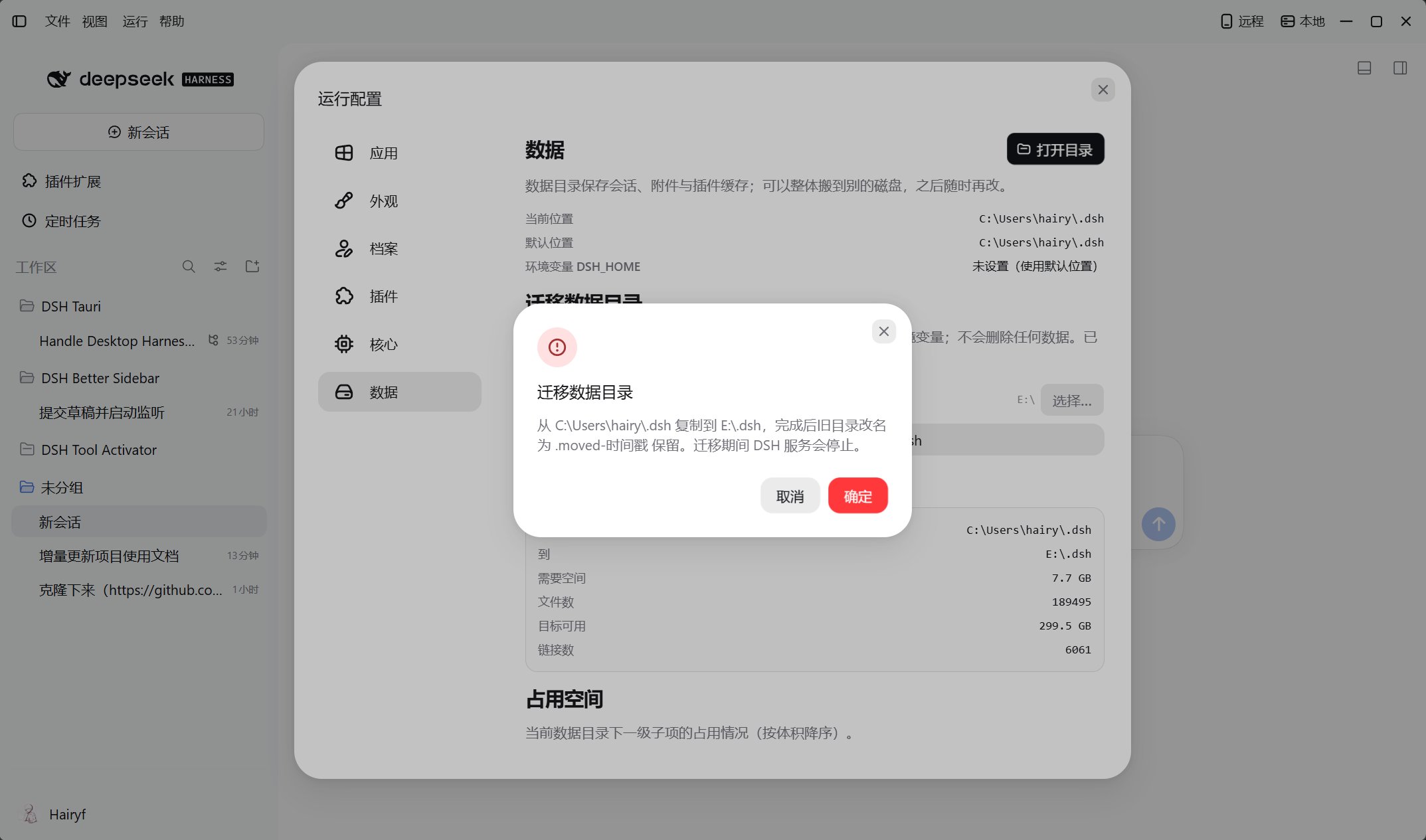
3. Select **Start migration** and confirm. The app stops the local service, copies and verifies data, renames and retains the old directory, then updates the user-level `DSH_HOME`.
4. Wait for completion and verify sessions, profiles, and plugins. Reopen existing terminals to pick up the new variable.
## Migrate the data directory
Release builds on Windows, macOS, and Linux support migration. Debug always uses `~/.dsh.dev` and does not support this operation.
1. Save your work and close other desktop, CLI, and Web clients using the directory.
2. Choose the destination's parent folder. Enter a folder name or leave it blank to keep the current name. Select **Dry run** and check the source, destination, and free space.
3. Select **Start migration** and confirm. The app stops the local service, copies and verifies data, renames and retains the old directory, then updates the user-level `DSH_HOME`.
4. Wait for completion and verify sessions, profiles, and plugins. Reopen existing terminals to pick up the new variable.
 ## Roll back to the old location
Select an old directory under **Roll back to the old location** on the same page and confirm. Current data is not deleted. If the old location contains a nonempty directory, that directory is renamed and retained first. Rollback does not merge data from the two locations.
Do not delete retained directories before verification. If migration fails, record the error and check the source and destination; see [Troubleshooting](../help/troubleshooting).
This documentation is built and hosted on [Mintlify](https://mintlify.com), a developer documentation platform.
## Roll back to the old location
Select an old directory under **Roll back to the old location** on the same page and confirm. Current data is not deleted. If the old location contains a nonempty directory, that directory is renamed and retained first. Rollback does not merge data from the two locations.
Do not delete retained directories before verification. If migration fails, record the error and check the source and destination; see [Troubleshooting](../help/troubleshooting).
This documentation is built and hosted on [Mintlify](https://mintlify.com), a developer documentation platform.