> ## Documentation Index
> Fetch the complete documentation index at: https://dshtauri.mintlify.site/llms.txt
> Use this file to discover all available pages before exploring further.
# Appearance
> Adjust desktop colors, interface scale, sidebar layout, and transparency.
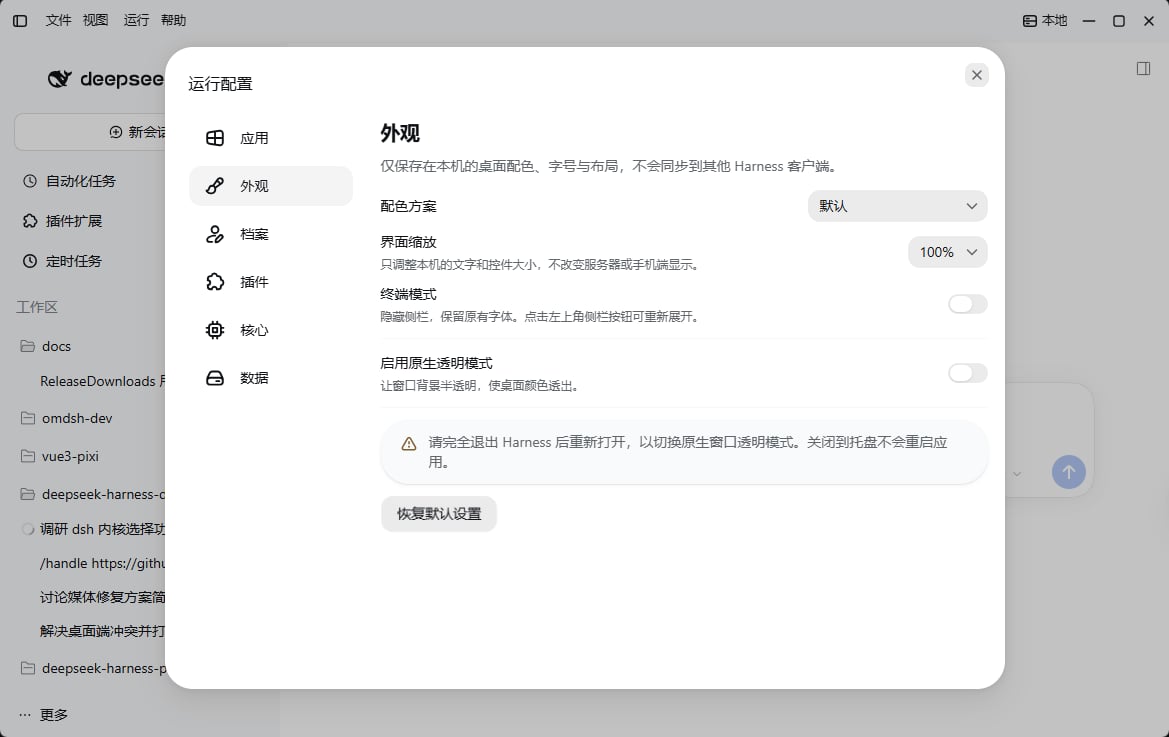
Open **Configuration → Appearance** in the desktop title bar. These options are saved on this device. They do not sync to other Harness clients or change the display on your phone.
 ## Colors and interface scale
| Option | Purpose |
| - | - |
| Colour palette | Choose Default, Nord, Solarized, Forest, Amber, GitHub, GitHub Dimmed, or GitHub High Contrast |
| Interface scale | Adjust text and controls on this device; available from `50%–200%` in `10%` increments, with a default of `100%` |
| Terminal mode | Collapse the sidebar to give content more space; keep the original fonts rather than switch to a command-line terminal |
Palettes support both light and dark interfaces. With terminal mode enabled, you can still use the top-left sidebar button to reveal the sidebar.
## Transparency and background blur
## Colors and interface scale
| Option | Purpose |
| - | - |
| Colour palette | Choose Default, Nord, Solarized, Forest, Amber, GitHub, GitHub Dimmed, or GitHub High Contrast |
| Interface scale | Adjust text and controls on this device; available from `50%–200%` in `10%` increments, with a default of `100%` |
| Terminal mode | Collapse the sidebar to give content more space; keep the original fonts rather than switch to a command-line terminal |
Palettes support both light and dark interfaces. With terminal mode enabled, you can still use the top-left sidebar button to reveal the sidebar.
## Transparency and background blur
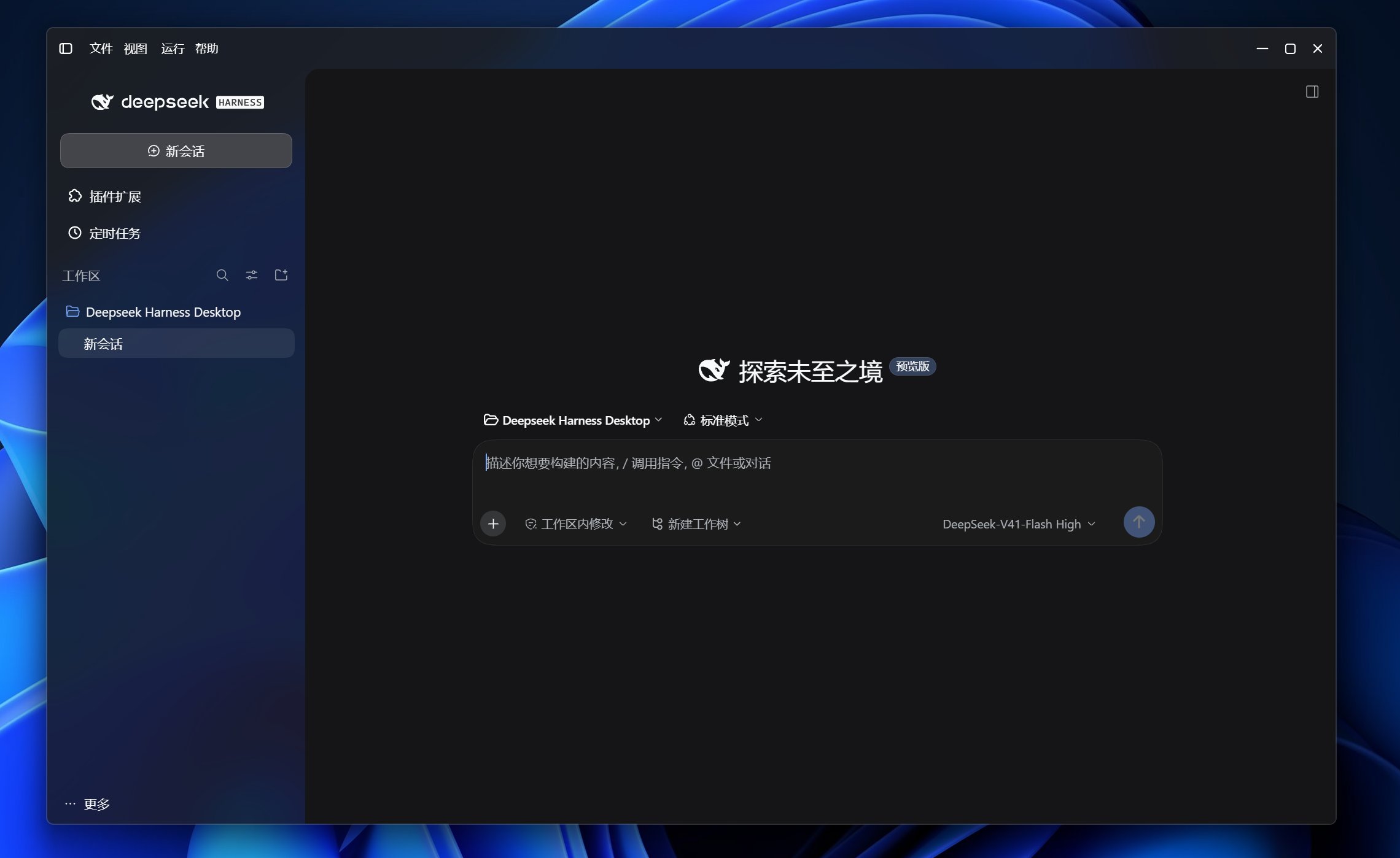 1. Turn on **Enable native transparency**.
2. Quit the app completely and reopen it when prompted. Closing to the tray does not restart the app. Turning native transparency off also requires a complete quit and reopen.
3. Adjust background opacity and choose whether to keep the content area opaque and enable background blur.
| Option | Behavior |
| - | - |
| Keep content area opaque | Keep the main content area opaque while allowing desktop colors to show through the window background and sidebar |
| Background opacity | Available from `20%–100%`; lower values make the background more transparent, and `100%` makes it opaque |
| Background blur | Use system backdrop effects on Windows and macOS; Linux behavior depends on the compositor |
Each time you enable native transparency, it starts with **`80%` background opacity, background blur enabled, and the content area kept opaque**. You can then adjust these options. Text and menus stay opaque.
The actual transparency and blur effects depend on your window system. If the background makes reading difficult, increase opacity or keep the content area opaque. To disable transparency completely, turn off native transparency, then quit and reopen the app.
## Restore defaults
Click **Restore defaults** to restore the default palette and `100%` interface scale, disable terminal mode, native transparency, background blur, and the opaque-content option, and reset background opacity to `100%`. If native transparency was enabled, you still need to quit completely and reopen the app.
See [Desktop settings](./settings) for service, profile, plugin, and core engine configuration.
This documentation is built and hosted on [Mintlify](https://mintlify.com), a developer documentation platform.
1. Turn on **Enable native transparency**.
2. Quit the app completely and reopen it when prompted. Closing to the tray does not restart the app. Turning native transparency off also requires a complete quit and reopen.
3. Adjust background opacity and choose whether to keep the content area opaque and enable background blur.
| Option | Behavior |
| - | - |
| Keep content area opaque | Keep the main content area opaque while allowing desktop colors to show through the window background and sidebar |
| Background opacity | Available from `20%–100%`; lower values make the background more transparent, and `100%` makes it opaque |
| Background blur | Use system backdrop effects on Windows and macOS; Linux behavior depends on the compositor |
Each time you enable native transparency, it starts with **`80%` background opacity, background blur enabled, and the content area kept opaque**. You can then adjust these options. Text and menus stay opaque.
The actual transparency and blur effects depend on your window system. If the background makes reading difficult, increase opacity or keep the content area opaque. To disable transparency completely, turn off native transparency, then quit and reopen the app.
## Restore defaults
Click **Restore defaults** to restore the default palette and `100%` interface scale, disable terminal mode, native transparency, background blur, and the opaque-content option, and reset background opacity to `100%`. If native transparency was enabled, you still need to quit completely and reopen the app.
See [Desktop settings](./settings) for service, profile, plugin, and core engine configuration.
This documentation is built and hosted on [Mintlify](https://mintlify.com), a developer documentation platform.